


iFax - Send & receive fax app
3.31.82K Reviews
App Specs
- Version
- 11.18.6
- Updated On
- License
- Free
- Downloads
- 1,000,000+
- Developer
- Crowded Road
- Categories
- Business
- Platform
- Android
Screenshots
 Analysis by AppCompare
For a household that shares a tablet or phone, a fax app can be useful in a very specific way: one person may need to send a form while someone else is expecting an important document. That convenience also makes it worth thinking about who should use the account and where incoming files will appear. I’d treat iFax as a practical tool for occasional paperwork, not as a family inbox that everyone should casually browse.
Shared device, separate paperwork
A realistic use is a parent handling a school, medical, or insurance form while another adult in the home helps gather the pages. The phone can replace the trip to a copy shop, but the document itself may contain personal details. I’d have one person oversee the send, check each page before it leaves, and make sure the recipient number is correct rather than passing the phone around with a document already open.
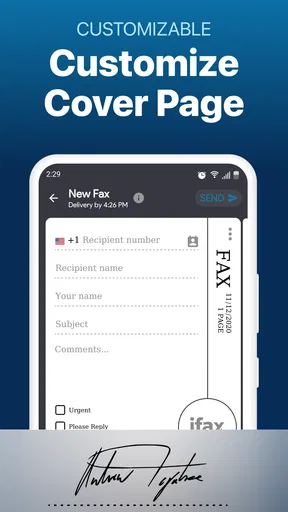
For shared devices, a useful habit is to prepare the file before opening the fax workflow: scan or select the intended pages, review them for stray attachments, and then enter the destination. This reduces the chance of sending a family member’s unrelated paperwork by mistake. A cover page can also make a transmission easier for the recipient to identify, especially when several people in a household are dealing with similar forms.
Keep account use intentional
The app’s fax number and incoming documents make it more than a one-off sending tool. If several people use one device, decide who is responsible for checking received faxes and saving anything that needs follow-up. That simple boundary matters more than a complicated household setup: it keeps a private document from becoming an accidental shared file and prevents two people from assuming the other has handled it.
I would not use a shared login as a substitute for separate work and personal records. If you fax on behalf of a small business from a family device, keep track of which documents belong to that work and where copies are stored. Before relying on the app for a routine, inspect its current account and billing screens yourself; paid options can change how worthwhile regular use feels, and purchases are not the same thing as a household sharing arrangement.
Coordination beats passing the phone around
When someone else in the home needs to send a fax, agree on the recipient, the exact file, and who will confirm the job has been handled. That is particularly helpful when a form has a deadline or when the recipient may need to call back. Keep a note of the intended next step outside the app if more than one person is involved; a sent document alone does not tell the rest of the household what still needs attention.
For receiving, decide who should be notified and who is allowed to open the document. If a fax is meant for one adult, another person does not need to preview it just because the device is nearby. I find this kind of clear handoff more dependable than relying on memory, especially when the app is being used alongside ordinary email, text messages, and paper mail.
Worth Reading Before You Choose

EA SPORTS FC Mobile 26 Is a Bigger Football Game, but It Takes Time

Flipboard Shows What News Apps Must Do Beyond the Feed

Switching to Android Auto Means Rethinking Your Driving Routine

Google Calendar Makes a Crowded Week Easier to Manage

Ludo King Makes the Most of the Minutes Between Plans

Baby Panda World Brings Quick Play to Modern Phones, but Its Game Library Feels Busy
Age, trust, and sensible supervision
The app is rated for Everyone, but that does not mean every child should handle household faxes independently. Faxing can involve addresses, signatures, health paperwork, or financial details, so I’d keep an adult in charge of choosing files and approving recipients. A younger family member might help locate a document, but the final review and send should stay with the person responsible for it.
Trust also means checking the contents rather than assuming a familiar filename tells the whole story. Open the document, confirm the pages are legible and in order, and remove anything that does not belong. For a sensitive form, that quick review is a better safeguard than rushing through the send screen.
Who benefits—and who should choose another route
I can see this app fitting people who send or receive paperwork now and then, work away from a physical office, or need to fax a document while managing household tasks. It is less compelling if you almost never fax: a local copy shop or a one-time service may be simpler than maintaining an app account. If your workplace already has an approved fax process, use that for company records instead of moving sensitive files into a personal setup.
Compared with a traditional fax machine, a phone-based workflow saves space and avoids needing to be beside the machine. Compared with email, it suits situations where the recipient specifically requires a fax, but it does not make faxing more appropriate than email when email is accepted. I would choose based on the recipient’s requirements, not on the assumption that one method is universally better.
Ever wondered if faxing could get any easier? Well, buckle up, because iFax is here to revolutionize your faxing game! This app is all about making faxing as simple and straightforward as sending an email. Whether you’re on Android or iOS, iFax has got you covered. I’ve taken a deep dive into this app, and let me tell you, it’s quite the experience.
Getting Started with iFax
First off, downloading and setting up iFax is a breeze. You just hop onto the App Store or Google Play, hit that download button, and you’re good to go. The app doesn’t bombard you with a million options or settings right from the start, which is honestly a breath of fresh air. You’ll be up and running in no time.
User Interface: Sleek and Simple
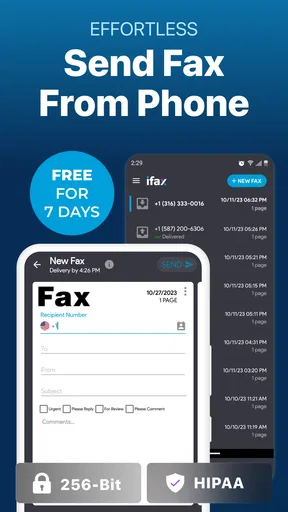
The interface? Oh, it’s slick. We’re talking about a clean, modern design that doesn’t overwhelm. Everything is laid out in a way that makes sense, with easy navigation. You’ve got your main menu with options like ‘Send a Fax,’ ‘Receive a Fax,’ and ‘History,’ making it super intuitive to use.
The app doesn’t try to do too much, and that’s its charm. It focuses on doing one thing really well—sending and receiving faxes. Having a straightforward UI is crucial for an app like this, and iFax nails it.
Sending a Fax: Easy Peasy
Now, let’s talk about sending faxes. With iFax, you can send a fax from your phone in just a few taps. You simply choose the document you want to fax, enter the recipient’s number, and hit send. Boom! It’s that easy. Plus, you can add a cover page if you’re feeling fancy.
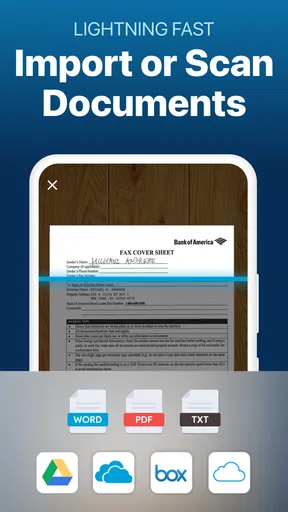
One of the standout features is the ability to fax various types of documents. Whether it’s a PDF, a Word document, or even a photo from your gallery, iFax handles it all. This flexibility means you’re not limited in any way, which is a huge plus.
Receiving Faxes: No More Waiting by the Machine
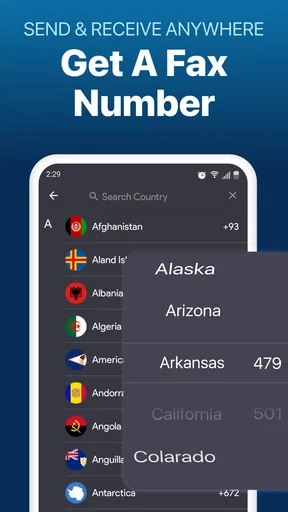
Receiving faxes is just as seamless. You get a dedicated fax number when you sign up, and any faxes sent to this number are delivered straight to the app. No more waiting around for the fax machine to ring; everything is digital and at your fingertips.
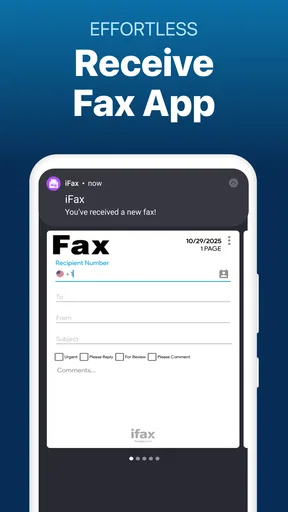
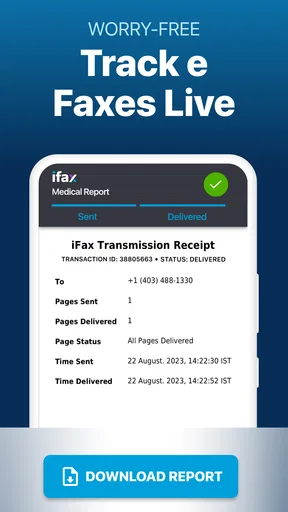
Notifications pop up when you receive a fax, so you’re always in the loop. You can view faxes right in the app, and there’s even an option to download them to your device. It’s all about making life easier, and iFax does just that.
Security Features: Because Privacy Matters
In today’s world, security is a big deal, and iFax takes this seriously. The app offers encryption for all your faxes, ensuring that your sensitive information stays private. This is a great feature, especially if you’re dealing with confidential documents.
Additionally, the app supports electronic signatures, which is a game-changer for authenticity. You can sign documents directly within the app, saving you the hassle of printing, signing, and scanning. It’s all about convenience and efficiency.
Subscription Plans: What’s the Cost?
Now, onto the nitty-gritty of pricing. iFax offers various subscription plans, so there’s something for everyone. They have a free plan, which gives you a taste of what the app offers, but for more robust features, you might want to look into their premium plans.
The premium plans come with perks like a higher number of faxes per month and priority delivery. If faxing is a regular thing for you, the investment might be worth it. The app offers monthly and annual subscriptions, so you can pick what suits your needs best.
Final Thoughts: Is iFax Worth It?
So, what’s the verdict on iFax? If you’re looking for a hassle-free way to send and receive faxes, this app is a solid choice. It’s easy to use, secure, and versatile. Whether you’re a business professional or just someone who occasionally needs to send a fax, iFax gets the job done without any fuss.
The convenience of having a fax machine in your pocket is pretty unbeatable. Plus, with its sleek design and user-friendly interface, using iFax is a pleasant experience. So go ahead, give it a try, and say goodbye to your old-school fax machine. You won’t regret it!
How I’d judge the cost before relying on it
The app is free to install, but that should not be confused with unlimited faxing at no cost. In-app purchases range from less than a dollar to several hundred dollars per item, so I would check the current purchase choices before making it part of a regular work routine. The right question is not simply whether sending a fax is possible, but how often you expect to send or receive one and whether the available option matches that pattern.
For a one-time form, compare the total checkout price with the cost and effort of using a local service. For repeated business paperwork, compare the plan’s limits and terms with the volume you actually handle rather than paying for capacity you will not use. I would also avoid starting a transmission before confirming the selected option: a quick review of the payment screen is worthwhile when a small task can otherwise turn into an unexpected purchase.
A practical document-check routine
Phone documents can be easy to misread when a page is tilted, cropped, or photographed in poor light. Before sending a photo or file, zoom in on names, dates, and signature lines, then check that all pages are present and upright. A recipient may receive the file exactly as it looks on your screen, so “it opened” is not the same as “it is readable.” This small pause is especially useful for multi-page forms and paperwork copied from a camera roll.
If a form needs a signature, consider whether the electronic signature workflow is acceptable to the organization receiving it. The convenience of signing inside the app does not guarantee that every office accepts every kind of electronic signature. When instructions specifically ask for a signed original or prescribe a particular signing method, follow those instructions instead of assuming a phone-based signature will satisfy them.
Choosing the right tool for the job
As a business app, iFax is aimed at a narrow but still useful problem: dealing with documents when fax remains part of the process. It has over a million installs and an average rating of 3.4 from around 6,400 ratings, with about 1,800 written reviews. I read that as a reason to approach it with sensible expectations rather than assuming every person will find the same workflow or value. Crowded Road is the developer, and the app has been available since October 9, 2011; its current version is 11.18.2 and it requires Android 8.0 or later. It is rated for Everyone.
Those details make it easy to identify whether the app fits a device and a basic household situation, but they do not decide whether it is right for your documents. I would skip it if you need a shared family archive, a clear separation between several people’s records, or a fully managed business workflow; use a service designed and approved for that purpose. For occasional personal faxing, on the other hand, having the send and receive steps on a phone can be a sensible alternative to finding a machine at the last minute.
My overall view is that this is most useful when a recipient insists on fax and the person sending the paperwork can take responsibility for checking the file, destination, and cost. The interface and document options make the task approachable, while the account and purchase decisions deserve a little more attention than the quick send flow suggests. If you keep those boundaries clear, it can be a handy household utility; if you need dependable shared access or fax only once in a blue moon, another route may be less hassle.
Pros
- User-friendly interface for easy navigation.
- Supports multiple file formats for faxing.
- Offers cloud storage integration for documents.
- Provides secure and encrypted transmissions.
- No need for a physical fax machine.
Cons
- Limited features in the free version.
- Occasional delays in sending faxes.
- Requires stable internet connection.
- Subscription can be pricey for casual users.
- No direct support for physical scanning.
FAQs for iFax - Send & receive fax app
What platforms does iFax support?
iFax is available on both Android and iOS devices, providing a seamless experience across smartphones and tablets. The app is designed to work efficiently on multiple platforms, ensuring users can send and receive faxes anytime, anywhere. It also has a web version, offering flexibility for desktop users.
Is iFax secure for sending sensitive documents?
Yes, iFax prioritizes user security by utilizing advanced encryption protocols to protect sensitive documents during transmission. The app complies with major privacy regulations, such as HIPAA, making it suitable for sending confidential information securely. Users can trust iFax for secure and reliable faxing.
Are there any subscription plans for iFax?
iFax offers various subscription plans tailored to different user needs. While the app provides a limited free version, premium plans unlock additional features such as unlimited faxing, priority delivery, and enhanced customer support. Users can choose monthly or annual plans based on their faxing requirements.
How easy is it to use iFax?
iFax is designed with user-friendliness in mind, featuring a simple and intuitive interface. New users can quickly navigate the app, send faxes, and access received documents with ease. The step-by-step guides and tutorials available within the app further enhance the user experience, making faxing hassle-free.
Can I fax internationally with iFax?
Yes, iFax supports international faxing, allowing users to send documents to over 200 countries worldwide. The app provides competitive rates for international faxes, ensuring cost-effective communication. Users can easily manage both domestic and international faxing needs directly from their mobile or desktop devices.


